Navigate360 Student
- 3.7
- Rating
- 500.00K
- Installs
- Free
- Price

 Analysis by App-foxy
Starting college often feels less like following a clear route and more like trying to read several maps at once. Classes, deadlines, advising, campus services, career planning, and everyday decisions can quickly become scattered across different places. Navigate360 Student is designed to bring that student-success journey into one education app, with the goal of helping students move through college with more direction.
I found its strongest appeal in that central idea. It is not meant to replace every academic tool a college uses, and I would not treat it as a complete substitute for a learning-management system, a calendar, or direct contact with an adviser. Instead, it works best as a guided companion for students who need help understanding what to do next and where to look for support.
The app is developed by EAB Global and is available for free. It is rated for Everyone, so its presentation is suitable for a broad student audience rather than being built around mature content or entertainment. With more than 500,000 installs, it has found a meaningful audience, although its average rating of 3.5 from roughly 1,000 ratings suggests that the experience may depend heavily on how well a student’s college has connected its services to the app.
You May Also Like

 Blood Strike: 2.5 Anniversary
Blood Strike’s Loadouts Turn Every Drop Into a Tactical Gamble
A close look at Blood Strike’s custom loadouts: how fast access to signature weapons reshapes its battle royale rhythm, rewards preparation, and narrows the gap between fights.

 Pandora - Music & Podcasts
Pandora’s Music Is Easy to Start, but Harder to Recover
Pandora’s strength is its low-effort path from a seed to a station. Its weak spot is how much confidence it asks you to place in connection, setup, and quiet recovery.

 8 Ball Pool
 Is Built on Rivalries, Rematches, and Routine
A close look at the rivalries, rematches, shared routines, and unanswered safety questions that turn a quick pool match into a persistent mobile community.

 Samsung Music
’s Quiet Strength Is Playing What You Already Own
Its reach comes less from spectacle than from dependable access to a personal library. That simplicity is both the app’s strongest retention engine and its ceiling.

 AccuWeather: Weather Radar
AccuWeather Review: A Quick, Clear Forecast for Everyday Decisions
For everyday plans, the best forecast is the one you can understand quickly. AccuWeather makes rain timing, radar, and local conditions easy to act on, with a few trade-offs.

 Hill Climb Racing
Why Hill Climb Racing Still Turns Crashes Into One More Run
A tiny car, a bumpy hill and one more upgrade: Hill Climb Racing keeps resurfacing because its simple chaos makes every near-miss feel personal.
More From Our News Desk



What Navigate360 Student feels like in everyday college life
My first impression is that Navigate360 Student is most useful when I treat it as a starting point rather than a place where every college task is completed from beginning to end. The app’s purpose is to help students achieve greater success in their college career, but that does not mean it magically organizes a difficult semester. Its value comes from making the next sensible action easier to recognize.
For a new student, that can be reassuring. Instead of wondering whether to contact advising, search for a campus resource, or wait for an announcement, the app can provide a more structured way to approach those decisions. I would especially recommend trying it during the first weeks of a term, when small uncertainties tend to accumulate. A student may not yet know which office handles a question, how to prepare for a meeting, or which support option is relevant. A guided student-success app can reduce that initial hesitation.
There is also a useful distinction between information and action. Many college websites contain the information students need, but finding it can require several searches and a fair amount of patience. Navigate360 Student is more appealing when it turns that search into a sequence: identify the issue, review the relevant guidance, and take the next step. The real benefit is reducing decision friction, not simply collecting campus information.
That makes the app a better fit for students who are still learning how their college works. First-year students, transfer students, returning students, and anyone who feels disconnected from campus services may gain the most from it. I can also see value for a student who is doing reasonably well but wants a clearer routine for staying engaged with college support.
On the other hand, students who already have a reliable system may find it less essential. If you already know your adviser, track every deadline in a preferred calendar, and regularly use your school’s established portals, another app may feel like one more place to check. The question is not whether it contains every tool a student could want. The question is whether it helps that particular student take action with less uncertainty.
What to do before judging the app
I would avoid judging Navigate360 Student after opening it once and browsing a few screens. Its usefulness is connected to the student’s institution and to the way the student engages with the guidance. A quick glance may show menus and information, but the meaningful test is whether it helps with a real college situation.
Choose one practical concern before exploring. It could be preparing for an advising conversation, finding support for an academic difficulty, understanding an unfamiliar college process, or deciding what to do after receiving a campus notification. Using a real question gives the app a fairer test than simply tapping through sections without a purpose.
I also recommend keeping expectations realistic about personalization. A college-success app can point you toward useful actions, but it cannot know every detail of your schedule, finances, health, workload, or personal circumstances unless those details are part of the institution’s connected experience. When a situation is urgent, sensitive, or complicated, the app should be treated as a route to human help rather than the final authority.
Setting it up without getting lost
The first setup should be approached as an orientation exercise. Download the app, open it, and pay close attention to the institution-selection or account steps shown on your device. The exact screens a student sees can vary depending on how the college has configured its experience, so I would read each prompt instead of rushing through it.
Use the college identity that matches your current enrollment, particularly if you have transferred, returned after time away, or have connections with more than one institution. Choosing the wrong campus can make the app feel empty or irrelevant even when the underlying problem is simply an incorrect starting point. This is one of the most important practical checks during setup.
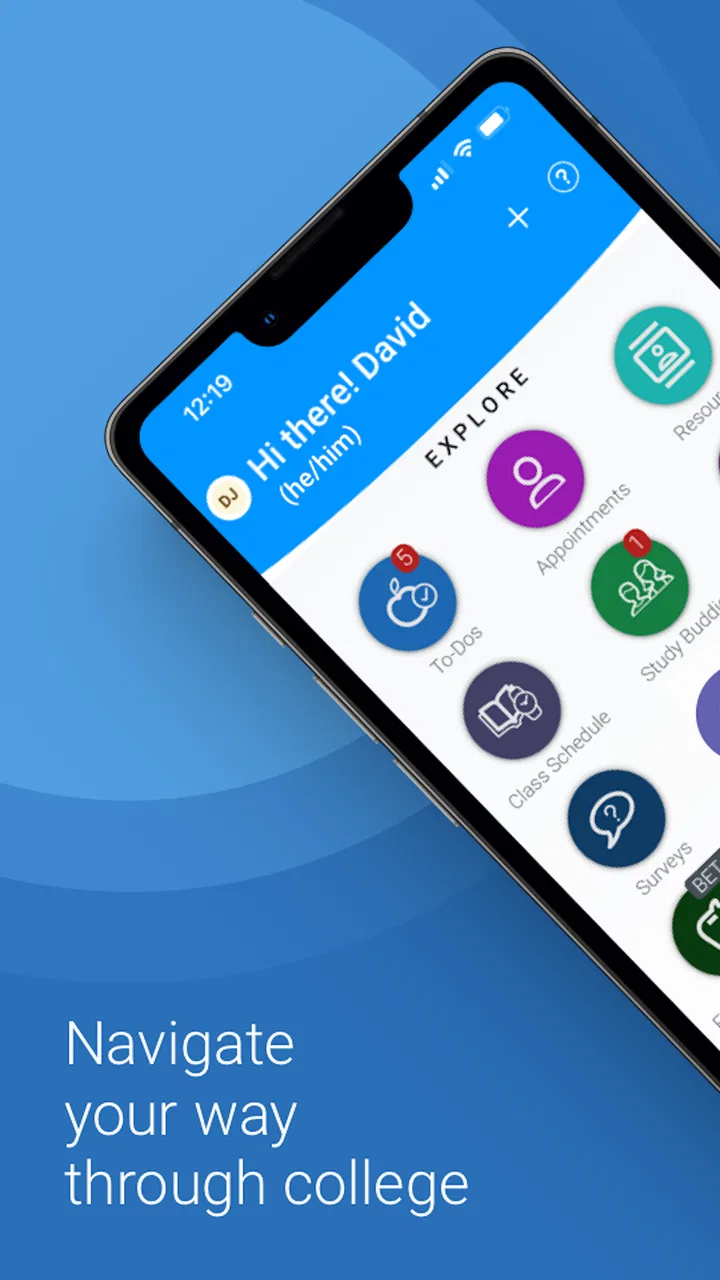
After signing in, spend a few minutes learning the app’s vocabulary. Look for areas connected with advising, appointments, campus support, academic planning, or messages, depending on what appears in your version. I would not assume that a button with a familiar name works exactly like the equivalent feature in another college app. The safest approach is to open each relevant area once and note what kind of action it supports.
One useful habit is to separate “information I should remember” from “action I should take.” If the app shows guidance about a process, save the important next step in your own notes or calendar when appropriate. If it directs you to contact a person or office, do not assume that reading the direction completes the task. The app can help you identify the route, but you may still need to make the call, send the message, attend the appointment, or complete the college’s separate form.
Students often ask whether a free app can replace their college’s other systems. In my view, it should not be used that way. Keep using the official learning, registration, email, and scheduling tools your institution requires. Navigate360 Student is better understood as an additional layer for student success and navigation. Its role is to help connect a student with the right action, not to become the only academic record or communication channel.
The current version is 26.10.5, so I would keep the app updated through the normal app-store process. Updates can matter when an institution changes its digital student experience, even though an update alone cannot guarantee that every campus service will appear in the same way for every user.
The first meaningful success
For a first successful action, I would choose something small and concrete: use the app to identify the right support path for a current question, then follow that path far enough to create a real next step. That might mean locating the relevant advising route, preparing for a conversation, or finding the campus resource connected to a problem you are already facing.
Here is a realistic example. Imagine that I have missed an assignment, feel unsure about my academic standing, and do not know whether I should contact a professor, an adviser, or another support office. Rather than searching the entire college website, I would open Navigate360 Student and look for the area that best matches the issue. I would read the guidance, note the recommended contact or appointment route, and then put the follow-up on my calendar. The success is not merely finding a page. It is leaving the app knowing what I will do next and when I will do it.
That workflow exposes one of the app’s less obvious strengths: it can help turn vague worry into a manageable task. Students often delay asking for help because the first step feels unclear. A structured route lowers that barrier. The app is particularly helpful when I use it before a problem becomes a crisis, because I have more time to understand the options and prepare a focused question.
A second useful workflow is preparing before an appointment. Instead of opening the app only when I am already sitting in front of an adviser, I would review the relevant guidance beforehand, write down the questions that remain, and bring those questions into the meeting. This makes the app a preparation tool rather than just a directory. It also prevents a common mistake: booking a meeting without knowing what I want to resolve.
A third insight is that students should revisit the app after taking action. If I contact an office, attend an appointment, or receive new advice, I would check whether the next recommended step has changed. College support is rarely a single interaction. The app is more valuable when it becomes part of a short loop: identify the issue, act, review the result, and decide what comes next.
Where first-time users may become confused
The biggest possible source of confusion is assuming that every college uses Navigate360 Student in exactly the same way. The app’s name and purpose may be consistent, but the content a student sees can be shaped by the institution’s own setup. One student may find a highly relevant set of routes and resources, while another may encounter a more limited experience.
If a section looks incomplete, I would first check whether I selected the correct institution and account. I would also look for an in-app explanation of the section before concluding that the feature is broken. If the issue affects an important deadline or appointment, contact the college through its normal official channel rather than waiting for the app to resolve it.
Another common misunderstanding is treating guidance as confirmation. A recommendation to speak with an adviser does not necessarily mean an appointment has been scheduled. A resource description does not necessarily mean the student has registered for that service. I would always look for a clear completion state and, when the matter is important, confirm the outcome through the appropriate college channel.
Notifications can create a similar problem. A student may see a reminder and assume it contains the full context, but reminders are usually most useful when paired with the underlying task. Open the related item, check the date and purpose, and decide whether any preparation is needed. If you simply dismiss reminders, the app loses much of its practical value.
Privacy is another reason to use good judgment. Even when an app is intended for student support, I would avoid entering unnecessary sensitive details into any general note or message field. For personal, medical, financial, or urgent matters, use the college’s designated confidential process. Navigate360 Student can help you find the right direction, but it should not encourage you to share more information than the situation requires.
How it compares with familiar alternatives
The usual alternative is a college website. Websites are often better for complete reference information, official documents, policies, and pages that students may need to revisit. Navigate360 Student can be easier when the problem is not “Where is the document?” but “Which part of college should I deal with first?” I would use the website for detailed verification and the app for guided orientation.
A learning-management system is a different tool altogether. It is generally centered on courses, assignments, grades, and class communication. Navigate360 Student is more relevant to the wider college journey, especially when the issue crosses outside one course. If I am checking a quiz deadline, I would use the course platform. If I am unsure whom to contact about a broader academic concern, I would consider Navigate360 Student.
A general calendar is still better for personal scheduling. The app may help me discover an appointment or recommended task, but a calendar gives me a complete view of work, classes, travel, and personal commitments. My preferred combination would be to use Navigate360 Student to identify the action and my calendar to protect the time needed to complete it.
Direct contact with an adviser remains the better option when the situation is nuanced or time-sensitive. An app can organize the first question, but a person can interpret circumstances, explain exceptions, and respond to details that a guided flow cannot capture. I would not use Navigate360 Student as a reason to postpone human support.
Students should also consider whether they want one more app in their routine. The free price removes a financial barrier, and the Everyone age rating makes it broadly accessible, but convenience is not only about cost. If a student already ignores several campus notifications, adding another source of prompts may increase noise. In that situation, the best approach is to use the app for a specific goal instead of trying to monitor every area constantly.
Who will benefit most, and who should skip it
I think the app is most worthwhile for a first-time college student who does not yet understand the support network around them. It can also suit transfer students who are learning a new institution’s processes, students returning after a break, and anyone who tends to wait because they are unsure which office to contact.
It is less compelling for students looking only for a study timer, a note-taking tool, a detailed course planner, or a replacement for their school’s academic portal. Those needs call for more specialized tools. I would also hesitate to recommend relying on it alone if a student is dealing with an immediate academic, personal, or safety concern. In those cases, direct official help should come first.
The rating of 3.5 gives me a balanced reason to be cautious rather than dismissive. With 383 written reviews, there is enough public feedback to show that experiences are not uniformly perfect, but a rating cannot explain whether dissatisfaction comes from navigation, institutional setup, missing content, sign-in problems, or expectations about what the app should do. I would test it against one real need before deciding whether it deserves a permanent place on my phone.
My recommendation after using it as a student guide
Navigate360 Student is a practical education app for students who need help turning college uncertainty into a clear next action. I like its role as a bridge between a student’s question and the college support system. It is most effective when I use it deliberately: start with a real concern, find the relevant route, complete the next action outside or inside the app, and then check what should happen afterward.
My advice for a new user is simple. Install it, select the correct institution carefully, explore the sections connected to advising and support, and choose one manageable task rather than trying to understand the entire college experience in one sitting. When the app points you toward a person, office, or separate system, follow through instead of treating the discovery as completion.
For me, the strongest reason to keep using it is not that it replaces familiar college tools. It is that it can make those tools easier to approach. The main trade-off is that the experience may feel limited or uneven if the student expects a complete academic command center. Used with that boundary in mind, it offers a reassuring first route for students who are asking, “What should I do next?”
I recommend Navigate360 Student to students who want a clearer starting point, especially during a new term or an unfamiliar college process. I would pair it with the institution’s official systems, a personal calendar, and direct human support when the situation demands judgment. That combination gives the app the role it handles best: helping a student move from confusion to a practical next step.
FAQs for Navigate360 Student
01What features does Navigate360 Student offer for enhancing student safety?
Navigate360 Student offers a comprehensive suite of features designed to enhance student safety. These include real-time alerts, anonymous reporting tools, and mental health resources. The app integrates seamlessly with school systems to provide a holistic approach to student well-being, ensuring that students have access to necessary support and communication channels.
02Is Navigate360 Student compatible with both Android and iOS devices?
Yes, Navigate360 Student is available for both Android and iOS platforms. The app is designed to operate smoothly on a wide range of devices, ensuring accessibility for all users. Regular updates are provided to maintain compatibility with the latest operating systems and enhance user experience.
03How does Navigate360 Student ensure data privacy for users?
Navigate360 Student prioritizes user privacy by implementing robust data protection measures. The app complies with relevant privacy laws and regulations, ensuring that all user data is encrypted and stored securely. Users can be confident that their personal information and reports are handled with the utmost confidentiality.
04What are the system requirements for installing Navigate360 Student?
To install Navigate360 Student, users need a device running Android 8.0 or higher, or iOS 12.0 or later. The app requires a stable internet connection for optimal performance and regular updates. Ensure that your device has sufficient storage space to accommodate the app and its features.
05How can schools integrate Navigate360 Student into their existing systems?
Schools can integrate Navigate360 Student into their existing systems through a straightforward setup process. The app is designed to work with various school management platforms, offering customization options to suit specific institutional needs. Schools can contact Navigate360 support for assistance and training during the integration process.
Pros
- User-friendly interface for easy navigation.
- Comprehensive safety resources available.
- Real-time alerts for quick responses.
- Customizable settings for individual needs.
- Supports collaboration between users.
Cons
- Requires stable internet for optimal use.
- Limited offline functionality.
- Initial setup can be time-consuming.
- Some features require in-app purchases.
- Notifications can be overwhelming at times.

Navigate360 Student
Gallery